lemoncheesecake-selenium
lemoncheesecake-selenium provides logging facilities to the Python Selenium library for tests written with the lemoncheesecake test framework.
Here is a usage example based on the getting started example of the Selenium Python Binding (unofficial) documentation:
# suites/python_org_search.py

import lemoncheesecake.api as lcc
from lemoncheesecake.matching import *
from lemoncheesecake_selenium import Selector, save_screenshot, is_in_page
from selenium import webdriver
from selenium.webdriver.common.keys import Keys


@lcc.test()
def python_org_search():
    driver = webdriver.Firefox()
    driver.implicitly_wait(10)
    driver.get("http://www.python.org")
    selector = Selector(driver)
    check_that("title", driver.title, contains_string("Python"))
    search_field = selector.by_name("q")
    search_field.clear()
    search_field.set_text("pycon")
    search_field.set_text(Keys.RETURN)
    selector.by_xpath("//h3[text()='Results']").check_element(is_in_page())
    save_screenshot(driver)
    driver.close()
We run the test:
$ lcc.py run
============================== python_org_search ==============================
 OK  1 # python_org_search.python_org_search

Statistics :
 * Duration: 10s
 * Tests: 1
 * Successes: 1 (100%)
 * Failures: 0

HTML report : file:///tmp/python_org_search/report/report.html
And here are the report details :
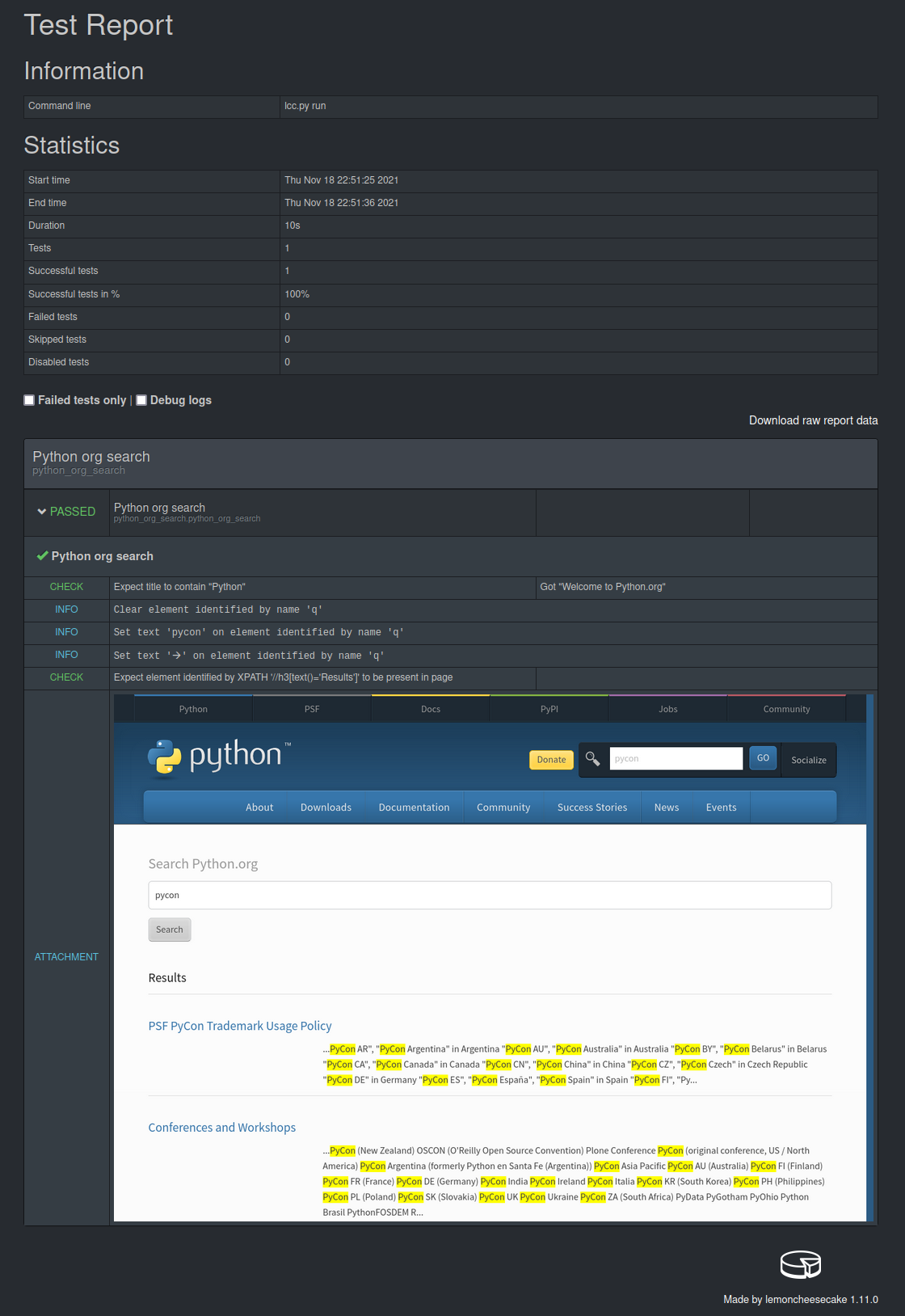
Installation
Install through pip:
$ pip install lemoncheesecake-selenium
lemoncheesecake-selenium is compatible with Python 3.7-3.10 and Selenium 4.x.
You will also need to install a WebDriver to control your web browser.
Introduction
The main feature of the library is to provide a layer above Selenium’s WebElement
that will log the interactions performed on the element (such as clicking, entering text, etc…) and allow various
checking operations (such as verifying the existence of the element, doing matching operations on the DOM node’s text,
etc…), this is the job of the Selection class.
Selection instances are obtained through the
Selector class
which acts like a Selection factory. A Selector instance mirrors the Selenium’s
By class such as:
Selector.by_idwill build aSelectionusing theBy.IDlocator strategySelector.by_xpathwill build aSelectionusing theBy.XPATHlocator strategy… and this for every locator strategy of
By
Interacting with elements
With Selection you can
click,
clear or
set_text (equivalent of Selenium’s send_keys) the element:
selection.set_text("hello")
You can also directly interact with a SELECT element, using the same select_* and deselect_* methods as the
Selenium’s
Select class with methods such as
select_by_value,
select_by_index, etc…:
selection.select_by_index(2)
If anything wrong happens (the WebElement cannot be found, the requested interaction is not possible on that
element, etc..),
the underlying Selenium’s exception will be propagated by the Selection method that has been called.
You can choose to automatically take a screenshot of the web page when this is happening by setting the CLASS attribute
Selection.screenshot_on_exceptions to True
(meaning that this behavior will be applied to Selection instances):
Selection.screenshot_on_exceptions = True
Checking elements
The Selection allows you to do checks on the underlying element using
the same check/require/assert scheme as lemoncheesecake
with the methods:
where expected is a Matcher instance whose matches method will
take a WebElement as argument. lemoncheesecake-selenium provides the following built-in matcher functions:
Examples:
selection.check_element(is_in_page())
selection.check_element(has_text(match_pattern(r"(\d)€")))
selection.check_element(has_attribute("class"))
selection.check_element(has_attribute("class", equal_to("enabled)))
selection.check_element(has_property("text_length"))
selection.check_element(has_property("text_length", equal_to(8)))
selection.check_element(is_displayed())
selection.check_element(is_enabled())
selection.check_element(not_(is_enabled()))
selection.check_element(is_selected())
You can also check for the non-existence of an element through the following Selection methods:
Example:
selection.require_no_element()
It is possible to automatically take a screenshot on failed checks (either it’s done by a check_*, require_* or
assert_* method) by setting the CLASS attribute
Selection.screenshot_on_failed_checks to True
(also meaning that this behavior will be applied to Selection instances):
Selection.screenshot_on_failed_checks = True
Explicit waits / Expected condition
lemoncheesecake-selenium provides support for
the explicit waits / expected condition
mechanism of Selenium with the following Selection methods:
Examples:
selection = Selector.by_xpath("//button[text()='ok']").\
   must_be_waited_until(EC.element_to_be_clickable)
selection = Selector.by_id("banner").\
   must_be_waited_until_not(EC.visibility_of_element_located, timeout=10)
These two methods assume that the expected condition callable passed in argument takes a locator as first argument.
They both return self (the Selection instance) meaning that they can be chained like in the previous example.
Making screenshots
Beyond the Selection.screenshot_on_* attributes described above, you can also make explicit screenshots with
the save_screenshot function:
from lemoncheesecake_selenium import ..., save_screenshot
[...]
save_screenshot(driver)
You can also use the save_screenshot_on_exception
context manager to make a screenshot when a WebDriverException exception occurs:
from lemoncheesecake_selenium import ..., save_screenshot_on_exception
[...]
with save_screenshot_on_exception(driver):
   [... your code here ...]
Page Object Model (POM)
While lemoncheesecake-selenium does not enforce any design pattern, it plays pretty well with the Page Object Model (POM) design pattern.
Here is how the initial example could be rewritten using this design pattern:
# suites/python_org_search_pom.py

import lemoncheesecake.api as lcc
from lemoncheesecake.matching import *
from lemoncheesecake_selenium import Selector, save_screenshot, is_in_page
from selenium import webdriver
from selenium.webdriver.common.keys import Keys


class SearchPage(Selector):
    @property
    def search_field(self):
        return self.by_name("q")

    def search(self, value):
        field = self.search_field
        field.clear()
        field.set_text(value)
        field.set_text(Keys.RETURN)
        return ResultsPage(self.driver)


class ResultsPage(Selector):
    @property
    def results_header(self):
        return self.by_xpath("//h3[text()='Results']")


@lcc.test()
def python_org_search():
    driver = webdriver.Firefox()
    driver.implicitly_wait(10)
    driver.get("http://www.python.org")

    check_that("title", driver.title, contains_string("Python"))
    search_page = SearchPage(driver)
    results_page = search_page.search("pycon")
    results_page.results_header.check_element(is_in_page())
    save_screenshot(driver)

    driver.close()
Changelog
The Changelog will tell you about features, improvements and fixes of each version.